Speaking of PowerPoint, here's one other trick I learned recently. Unlike the other Microsoft Office programs, PowerPoint won't let you open two instances of the full program so you can have different presentations on different screens. For those of us who use multiple monitors and are accustomed to having different Word documents (or Excel, OneNote, Outlook, PDF, etc.) open simultaneously on different screens, having to revert to ALT-tab to toggle between two different PowerPoint presentations can be very frustrating.
I could squish everything onto one screen:
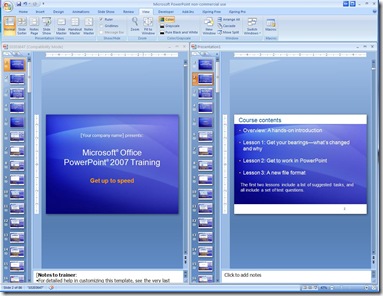
But, why do that when I've got a whole empty screen next to it?
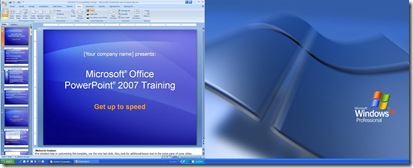
Anyway, I haven't found a solution, but here's a workaround:
First, click on the restore down button (the one just left of the red exit button), grab a handle on the PowerPoint window, and drag it across to a second (or even third) monitor. Here's what that looks like as I drag the PowerPoint window across two of my monitors:
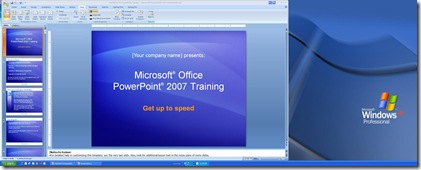
Then, once you have both screens filled with the PowerPoint window, go to View>Arrange All. You'll have one presentation open on one monitor and one on the other. Although the PowerPoint controls will sit only on one screen, you'll at least be able to work with two full-sized presentations simultaneously, without having to toggle between them.
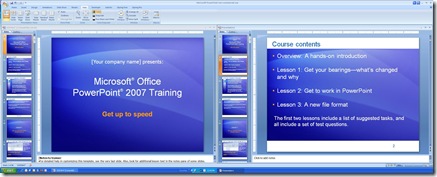
BTW, those of you who are detail-oriented and click on the screenshots to see larger versions of them will notice that the two presentations show on the taskbar for the monitor where they're displaying. That's thanks to a program called UltraMon, which adds several features that are great add-ins for multiple monitor users.




 Posts
Posts

